
Getting Started
Can students access Coursedog Events to book spaces, or is it restricted to staff/faculty?
Students can access Coursedog Events to reserve a variety of campus spaces. Use Coursedog Events to book classrooms for club meetings, study rooms for group projects, and outdoor spaces for events. Users can access Coursedog by visiting coursedog.usu.edu.
How do I get access to login to Coursedog Events for the first time?
To access Coursedog go directly to coursedog.usu.edu. You will be redirected to the Coursedog login page, where you can sign in using your preferred USU email address. After logging in for the first time, we recommend bookmarking coursedog.usu.edu for quicker and easier access in the future.
For training materials and support, refer back to reservations.usu.edu.
What is a Training Facilitator?
Training Facilitators are the team responsible for supporting the functionality of Coursedog Events by creating communication processes and teaching the USU community how to use the platform effectively. If you have questions about using Coursedog Events or need additional assistance, a Training Facilitator is available to help. They provide weekly training sessions both in person and over Zoom, as well as one-on-one and organization-specific training upon request.
Each organization has a dedicated Training Facilitator who serves as the primary point of contact for Coursedog Events support and training. Training Facilitator assignments can be found on reservations.usu.edu.
If you're unsure who your Training Facilitator is, you can email coursedog@usu.edu or ask for assistance in the #coursedog-event-scheduling-module Slack channel, and someone will connect you with the appropriate facilitator.
I have a question about other Coursedog products. Who do I contact?
USU uses multiple Coursedog products, and the appropriate contact depends on the area with which you need assistance.
For questions related to Academic Scheduling, contact schedule@usu.edu.For questions regarding the Curriculum or Catalog, contact Toni Gibbons at toni.gibbons@usu.edu.
Creating a Reservation
Why can't I just email someone to add the reservation for me?
If assistance is needed while completing a reservation, our Training Facilitators are happy to help. However, it is highly recommended that the person who will be using the space be the one to submit the reservation. Reservations submitted, are automatically added to the submitting user’s reservation history for easy access. Emails will also be sent related to that user for the reservation, including confirmations, follow-up questions, updates, and any changes that may be needed throughout the reservation process.
I am making a reservation for someone else. Do I have to do something different?
It is highly recommended that the person actually using the space be the one to book it. However, if booking on behalf of a classmate or colleague, their information must be added as the onsite contact.
If trying to book on behalf of an external group, club, or other organization (including ecclesiastical, not-for-profit, or commercial), the group MUST email events@usu.edu to make the reservation. USU students/faculty/staff are not authorized to bring an organization to campus without following corresponding policies and procedures.
Do I need to submit an individual request for each date, or can I group them?
How do I create a list of rooms I most commonly use for easy review of their schedule? (Faculty/Staff Access Only)
Finding and Selecting Rooms
Why can't I find a specific room or building listed in the Coursedog room inventory?
There are two common reasons why this may happen:
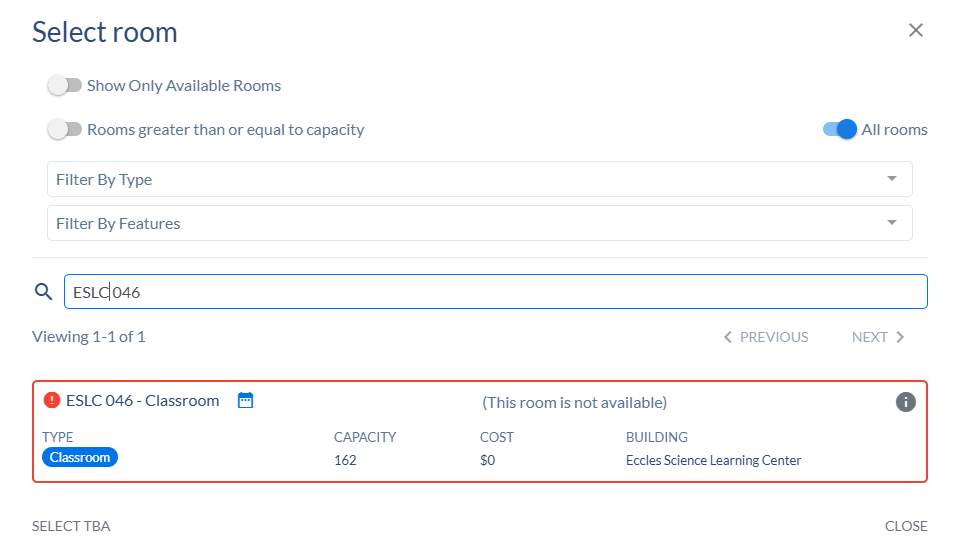
1 - The room is already reserved during the selected time. By selecting the "All Rooms" toggle, every room in the Coursedog room inventory for this form will appear, regardless of whether it is available during your selected date and time. If the desired room appears with a red border, it means the room is already reserved for that time.
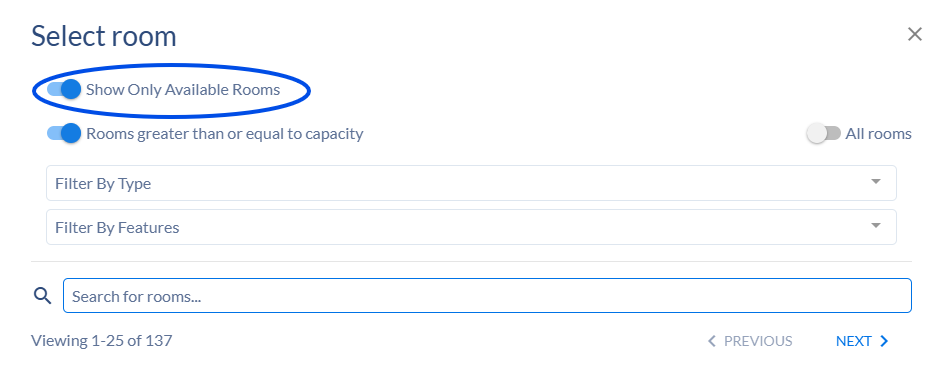
Tip: To only view an available room, keep the "Show Only Available Rooms" toggle in the upper-left corner selected when searching for available spaces.
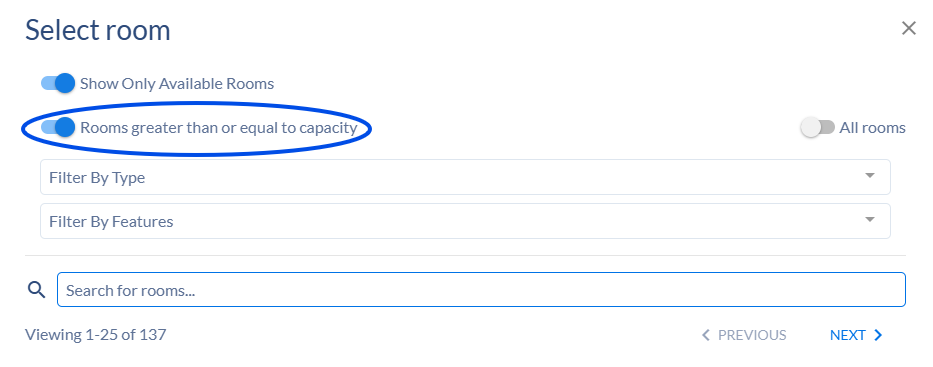
2 - The “expected headcount” field exceeds room capacity. If the room desired is too small for the number of expected attendees entered, it will not appear in the search results. To check, turn off the "Room greater than or equal to capacity" toggle located in the upper-left corner of the room selection screen. This will allow smaller rooms to appear in the results and display the maximum capacity for each space.
Are tables and chairs already included in the room, or do I need to rent them?
It depends on the space. Some spaces come with tables and chairs included, while others may require additional equipment rented and delivered to the space. To see what is included in a room, review the Photos and Features sections while selecting your space.
Room details are continually being added as this system is expanded, so some rooms may not yet have images available or details documented yet. To suggest an update, please contact coursedog@usu.edu.
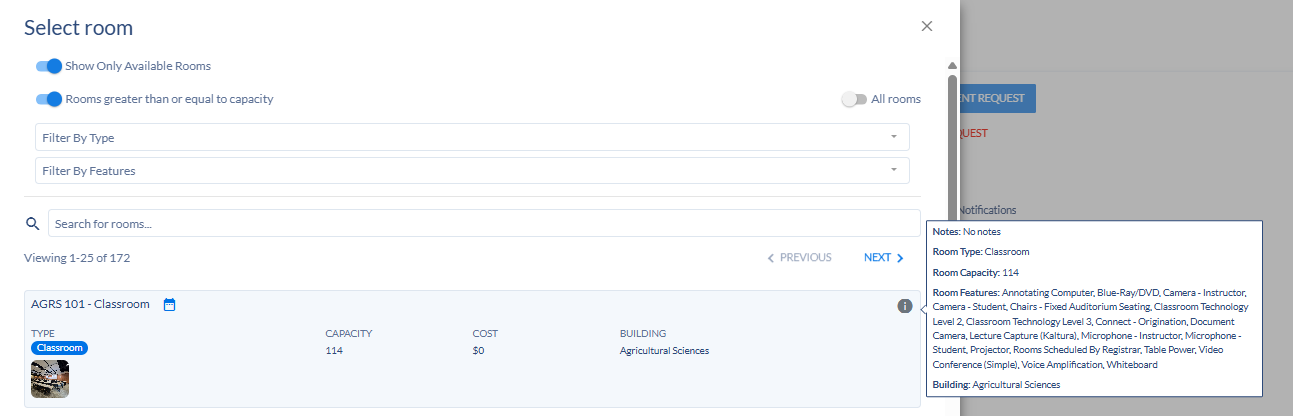
To view a room's features, click the "i" icon next to the room.
A panel will open displaying the room's amenities and equipment, such as tables, chairs, whiteboards, audiovisual equipment, and other available features. If the information you need is not listed or you are unsure what is included, please contact the room's scheduler for additional details.
Why is a specific date or room "blacked out" or unavailable on the scheduling calendar?
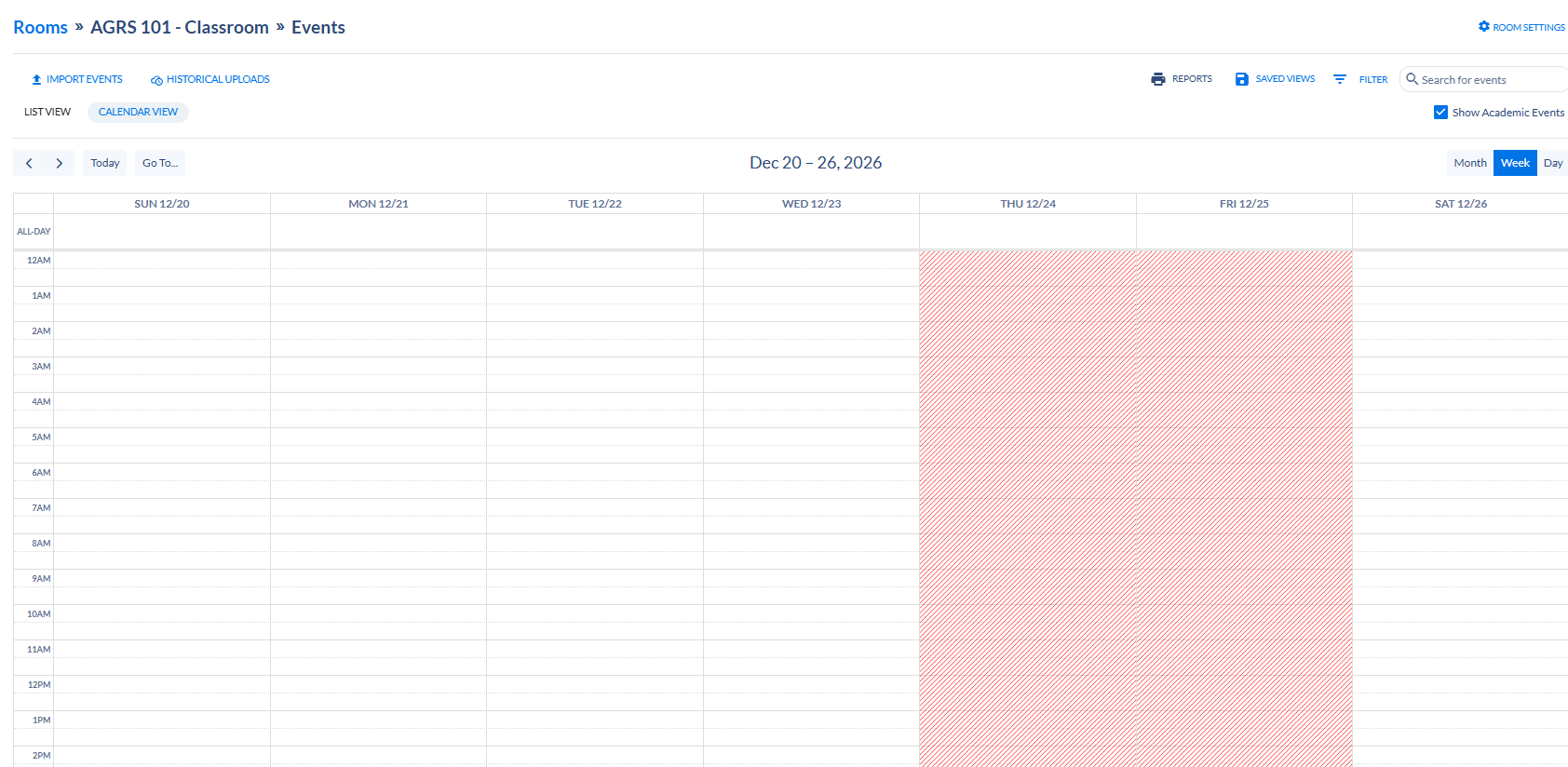
Specific spaces are unavailable due to a variety of reasons such as University Holidays, business hours, maintenance, or the space may still be getting scheduled through the Registrar's office for the academic semester. For more information about a blackout, check with the room's scheduler.
Why are there prices on rooms or resources?
Room and resource pricing listed here may vary from the actual cost due to MOU's on file and department-specific discounts. We make every effort to reflect the highest potential cost, but please reach out to the room or resource contact should you need exact pricing before adding your request.
Managing Your Reservation
How do I find reservations I've submitted?
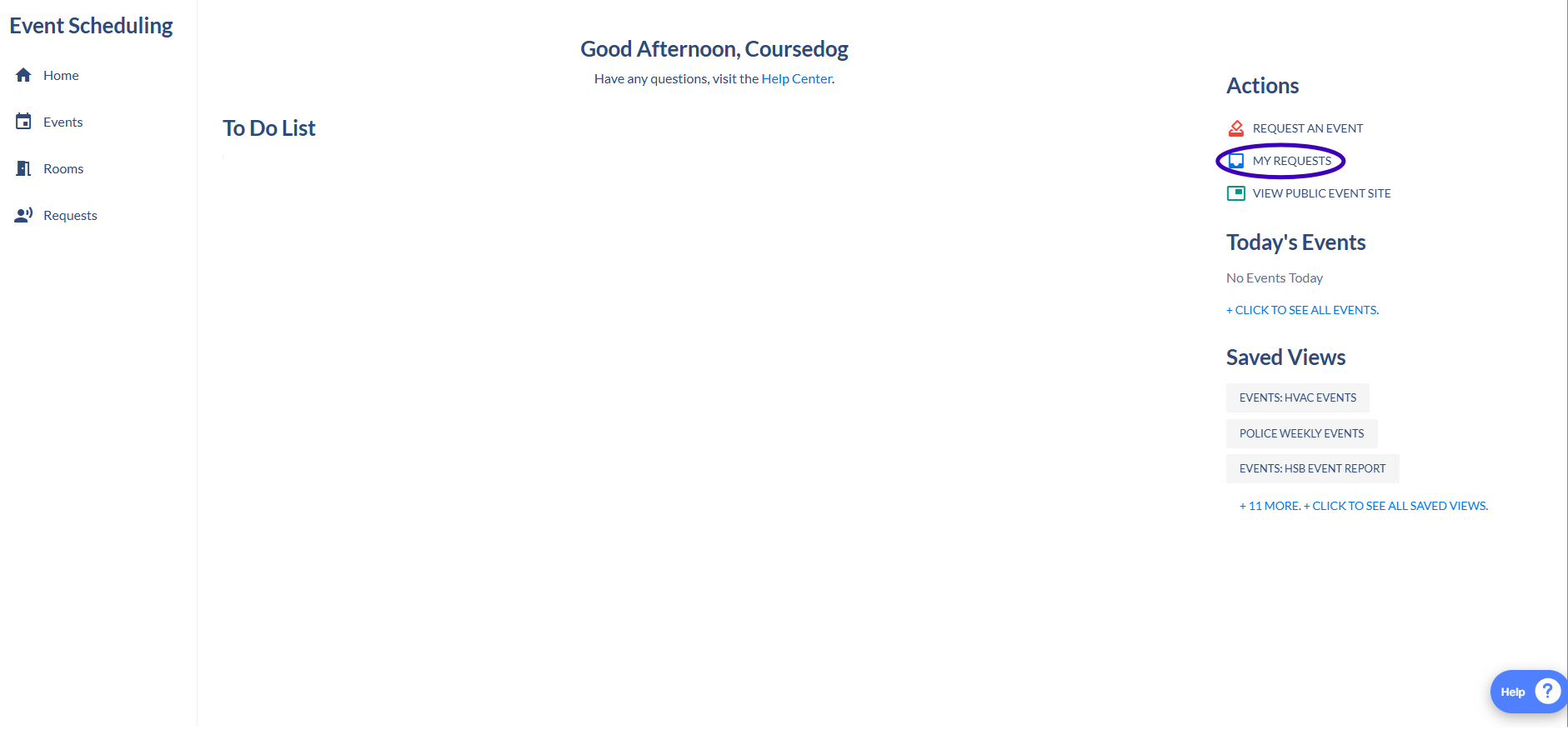
From the Coursedog home page, click “Requests” on the left side of the screen or "My Requests" on the right side of the screen.
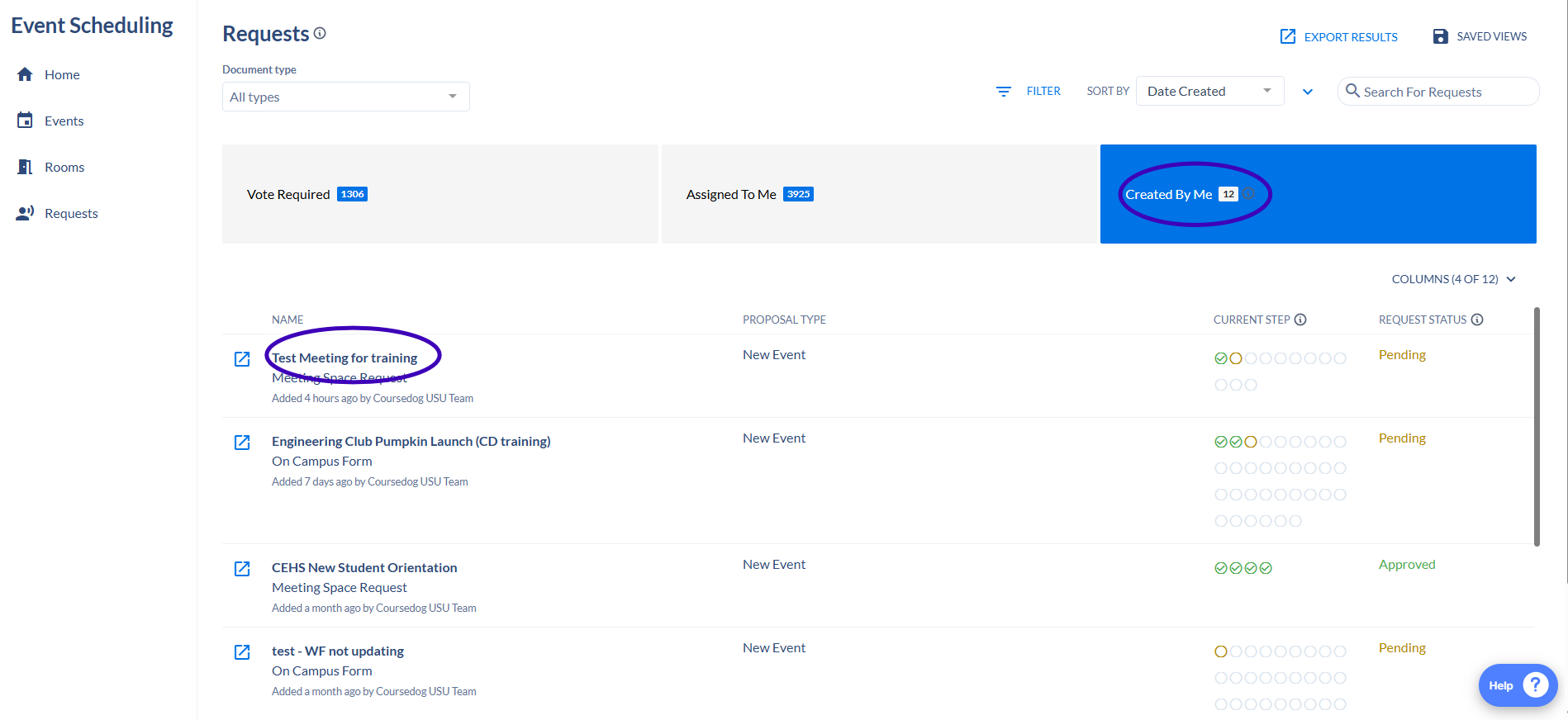
The Requests page will then open. Select the "Created By Me" tab to view a list of all the reservations you have submitted. From there, simply select the reservation you would like to view.
What happens after I click submit and how can I track who is currently reviewing my pending reservation request?
Can I modify a room reservation request once it has entered the review pipeline?
If you need to modify a room reservation request after it has entered the review pipeline, please contact the room approver assigned to your request. To find your room approver, open your event, select Workflow, and then click Room Approvals.
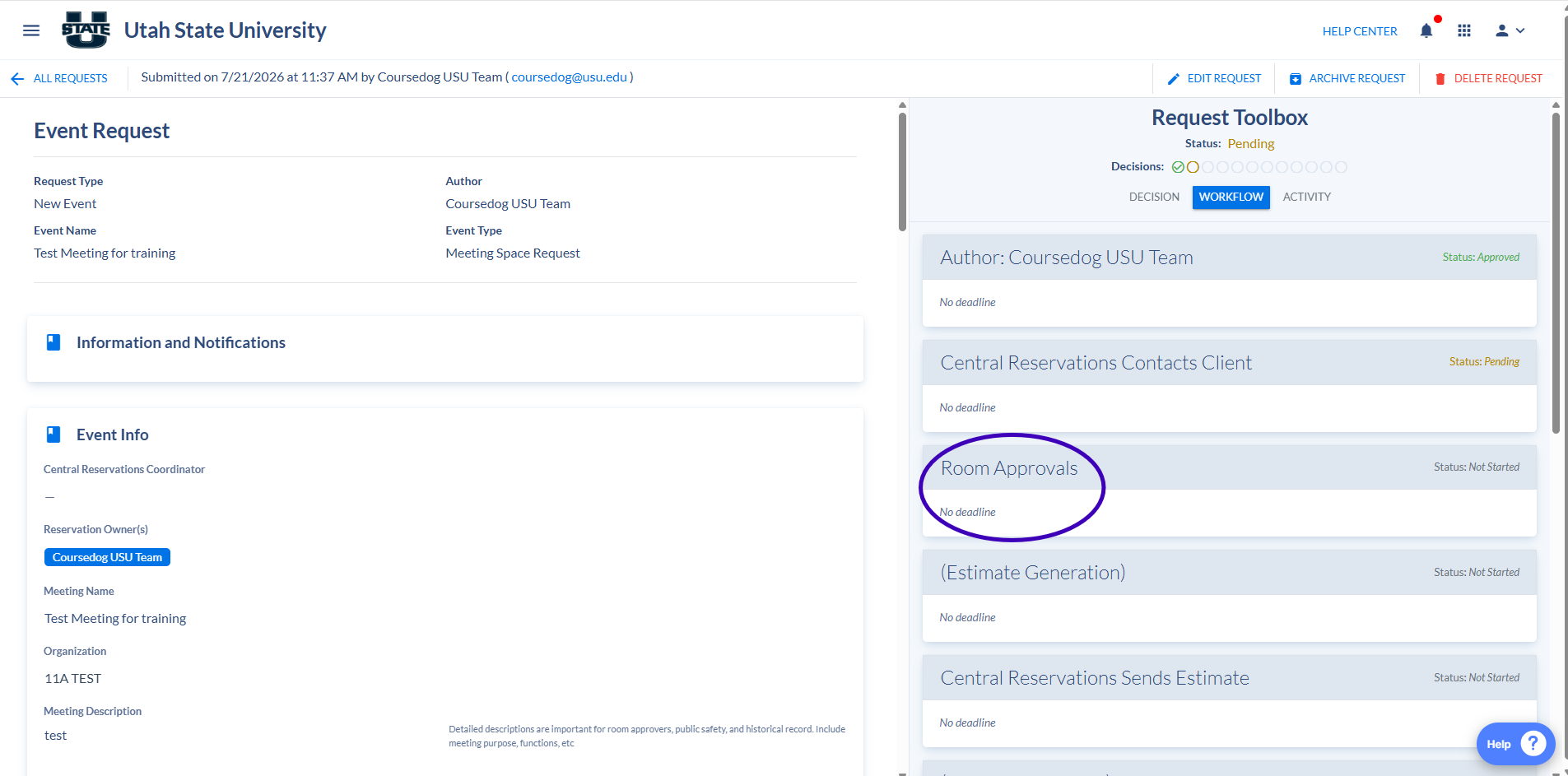
This screen will display the approvers for your request. If you hover over the "i" icon next to an approver's name, their contact information will be displayed.
Why is my reservation request still pending when I was told it's approved?
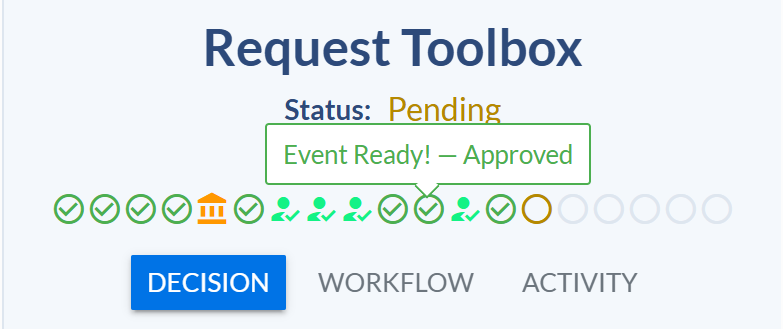
The reservation status will remain Pending until the entire event lifecycle has been completed, including any required invoicing and payment. We understand this can be confusing, but you can review the progress of your reservation by viewing the Workflow section of your event.
The workflow bubbles represent each step of the reservation process. When a step displays "(Step Name) – Approved," it means that a specific workflow step has been approved, not that the reservation as a whole has been fully approved. Your reservation status will not change to Approved until all required workflow steps have been completed.
Help and Support?
I have questions about my reservations, who do I contact?
The best person to contact depends on the type of reservation you submitted. If your reservation is for something simple, such as a meeting or luncheon, contact the room scheduler listed as the Room Approver in the Workflow section of your reservation. If your reservation is for a larger event, contact the department responsible for managing the reservation form you used. For example, "Events on Campus" requests are managed by Central Reservations (events@usu.edu), while the "Campus Rec Gyms, Pools, and Fields" form is managed by Campus Recreation. If you are unsure who to contact, send an email to coursedog@usu.edu, and we will be happy to direct you to the appropriate department or contact person.